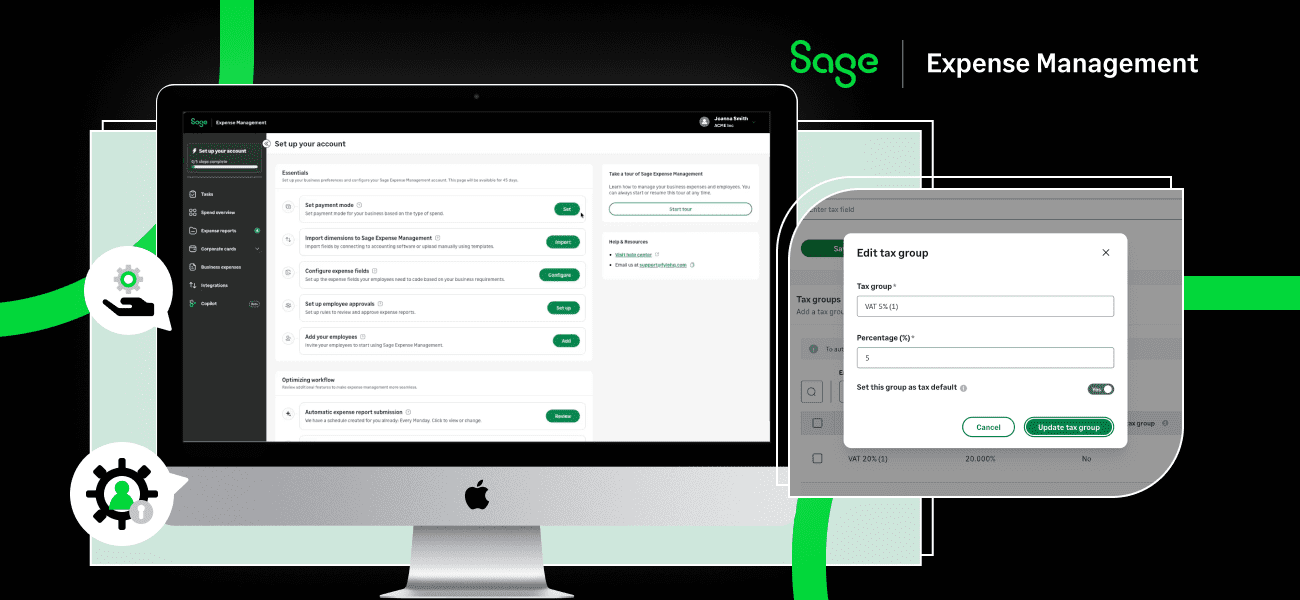


Your team is ready to close the month, but several card transactions still need receipts. One employee has a photo on their phone. Another cannot remember which client a purchase was for. Your finance team is filling the gaps before those expenses can be reconciled in QuickBooks.
The right expense management add-on helps resolve those gaps throughout the month. It collects receipts, gets expenses coded and approved, and sends the information into your accounting system.
Our recommendation for US small and midsize businesses that want to keep their existing cards is Sage Expense Management (SEM). It combines real-time card feeds, receipt collection by text, and integrations with QuickBooks Online and Desktop.
This guide compares seven options, explains what to look for in a QuickBooks integration, and shows how to evaluate the full cost of a new expense workflow.
Key takeaways
- Choose for your workflow. SEM is our top pick for managing expenses on existing company cards. Ramp and BILL Spend & Expense are worth considering when you also want a new corporate card program.
- Check the actual integration. Accounting fields, receipt attachments, export formats, payment status, and sync timing matter more than a QuickBooks logo on a product page.
- Confirm your QuickBooks edition and subscription. Several tools support Desktop, but connectors, fees, and plan requirements differ.
- Compare the total cost. Include user minimums, higher plans, integration charges, and the implications of moving card spending.
The best QuickBooks expense management add ons at a glance
We compared official product documentation and published plans, with particular attention to US SMB finance teams, existing cards, and the work required to get expenses into QuickBooks. The recommendations below reflect those priorities.
{{quickbooks-addons-1="/blog-table"}}
Pricing and plan details checked September 28, 2026. Prices are in USD, before applicable taxes and additional fees. Card approach describes the main card workflow. See each product section for pricing and integration links.
{{quickbooks-addons-1="/cta-banners"}}
What QuickBooks already handles and when an add on helps
QuickBooks already offers useful expense tools. Depending on your edition and plan, these include bank and card feeds, receipt capture, categorization, and tracking expenses against customers or projects.
For a small team with straightforward spending, those capabilities may be enough. An add-on becomes valuable when the work of collecting, reviewing, and coding expenses starts consuming time your finance team needs elsewhere.
{{quickbooks-addons-2="/blog-table"}}
Missing receipts can partly be a timing problem. The longer the gap between a purchase and a receipt request, the harder it can be to recover the details. A prompt while the purchase is still fresh gives employees an easier task than reconstructing a month of spending.
Also separate expense-policy checks from card controls. Flagging an expense or blocking its submission is different from declining a purchase at the point of sale. Ask which kind of control you need before comparing products.
{{quickbooks-addons="/did-you-know-cards"}}
What a useful QuickBooks integration should include
An integration should match the way your books are organized. Before buying, ask the vendor to demonstrate five things:
- Accounting fields. Can it use your accounts, classes, locations, and customer or job codes, where your QuickBooks edition supports them?
- The exported record. Does an approved expense become a bill, expense, credit card transaction, or journal entry? Can corporate card and reimbursable expenses be handled differently?
- Receipt access. Does the receipt arrive as an attachment, a link, or a report PDF? Open the resulting record in QuickBooks during the demo.
- Payment status. Which payment updates flow between systems, in which direction, and for which transaction types?
- Timing and exceptions. What triggers export, how are failures surfaced, and what happens if someone edits or retries an expense?
A two-way integration can import accounting lists and return approved expenses without mirroring every later edit in both systems. Likewise, a real-time card feed does not mean every accounting field updates instantly. Ask about each data flow separately.
Seven expense management solutions to consider
1. Sage Expense Management
Best for US SMB finance teams that want to keep their cards and reduce receipt chasing, reconciliation work, and QuickBooks data entry.
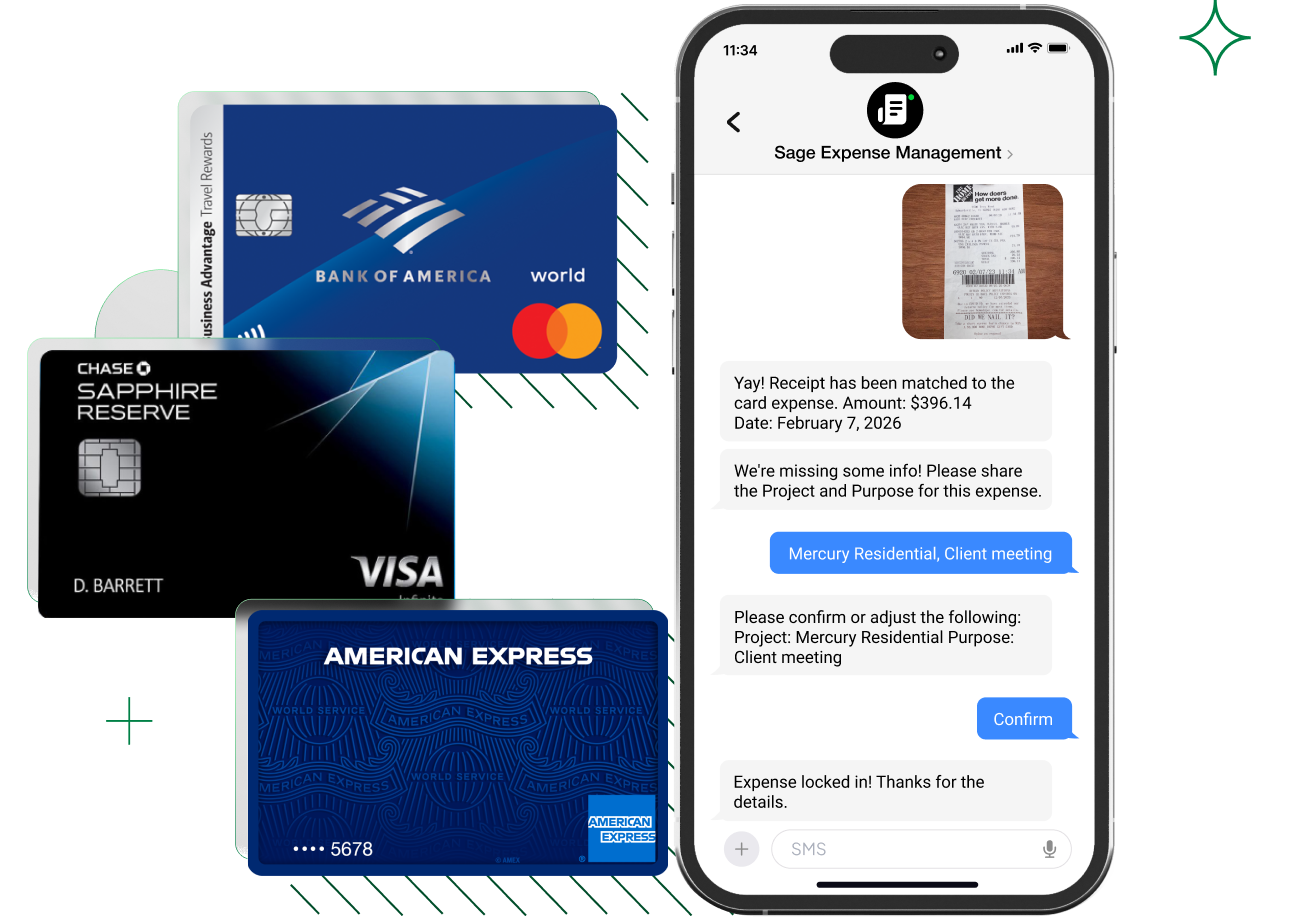
Sage Expense Management addresses the work between a purchase and an accounting entry. Employees can use their existing cards, respond to a receipt request by text, and complete an expense while the details are fresh. Finance gets a central place to review spending and prepare it for QuickBooks.
This is especially useful when a business already has credit lines, rewards, and banking relationships it wants to retain. Adopting SEM does not require replacing that card program.
Key features
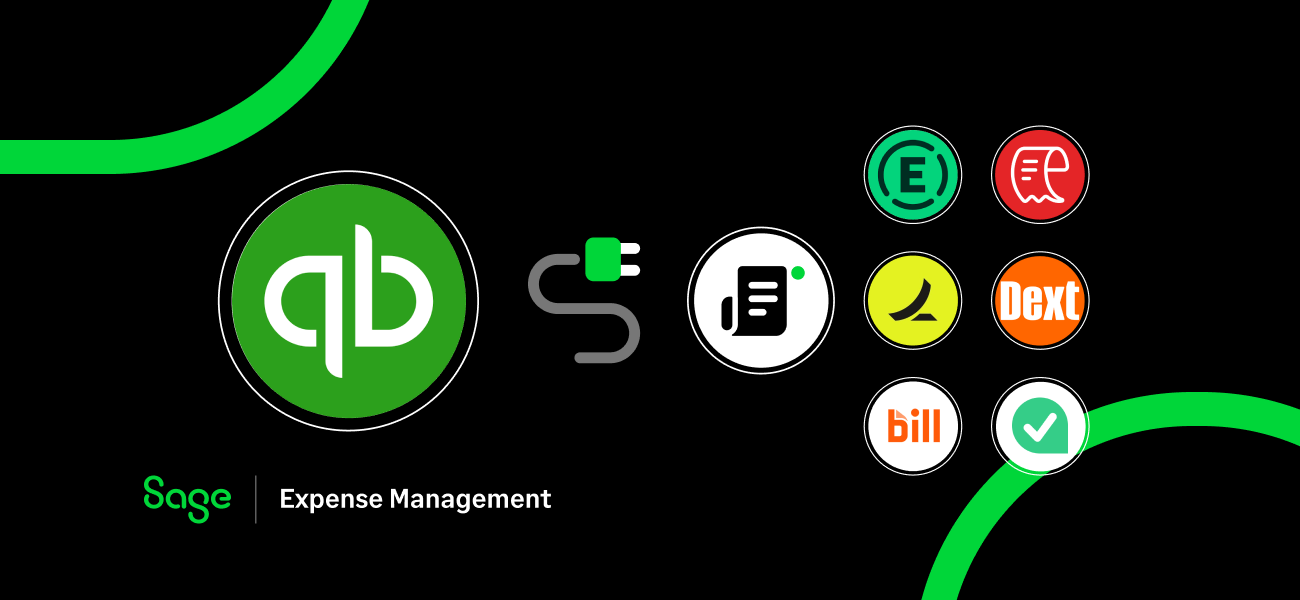
- QuickBooks Online and Desktop integration: Connect SEM with QuickBooks to import accounting fields like accounts, categories, classes, locations, and customer or job information, depending on your setup.
- Real-time card feeds and receipt collection: Automatically capture transactions from existing Visa, Mastercard, and American Express cards. Employees can submit receipts via text, mobile, or email, with automated extraction and matching to keep expenses ready for QuickBooks.
- Automated expense coding and approvals: Employees can code expenses using imported QuickBooks accounting fields, while policy checks and approval workflows help ensure expenses are reviewed before export.
- Expense exports with receipt attachments: Export approved, fully coded expenses to QuickBooks Online or Desktop with receipts attached. QuickBooks Online also supports configurable export formats for corporate card and reimbursable expenses.
- Two-way payment status sync: Keep payment statuses updated between SEM and QuickBooks Online or Desktop, giving finance teams better visibility into paid and unpaid expenses.
- Job costing support: Export eligible expenses to QuickBooks Online Item Details, based on the selected export format, to help track project-related expenses.
Who it suits: SMB finance teams using QuickBooks Online or Desktop that want to simplify expense tracking, approvals, and reconciliation without switching their existing corporate cards.
Pricing: Growth starts at $11.99 per active user per month, with a five-user minimum. Business is $14.99 per active user per month, with a ten-user minimum.
{{quickbooks-addons-3="/cta-banners"}}
2. Expensify
Best for teams that want employee expense reporting and reimbursements, with an optional corporate card.
Expensify combines receipt scanning, expense reports, approvals, and reimbursement workflows. It is a relevant option when employee-submitted expenses are the main process you need to organize.
How it works with QuickBooks: QuickBooks Online is available on Collect. QuickBooks Desktop requires Control and uses a connector with QuickBooks Web Connector. Confirm the supported Windows environment and export settings during setup.
Key features
- SmartScan receipt capture and expense reports.
- Approval and reimbursement workflows.
- An optional Expensify Card tied to subscription discounts.
Trade-offs to consider
- Desktop users need to budget for Control plan, even if Collect plan otherwise meets their needs.
- Control's bill depends on the subscription commitment, additional active members, and card-based discounts. Compare your expected bill before assuming the lowest advertised effective rate applies.
Who it suits: Finance teams standardizing employee claims, and employees who regularly submit receipts and reimbursement reports.
Pricing: Collect costs $5 per member per month. Control's annual subscription starts at $18 per committed member per month; pay-per-use pricing is higher. The free individual offering does not include accounting integrations.
3. Ramp
Best for businesses adopting a corporate card program alongside expense and spend controls.
Ramp brings corporate cards, expense reporting, reimbursements, and other finance workflows together. Its appeal is strongest when a business wants to manage card issuance and card-level spending controls within the same platform.
How it works with QuickBooks: QuickBooks Online is included in Ramp Free. The QuickBooks Desktop connection requires Ramp Plus and uses QuickBooks Web Connector. Finance teams should test the accounting fields and transaction types they use most often.
Key features
- Physical and virtual cards with spending controls.
- Receipt collection, matching, and reminders.
- Expense reimbursements and accounting automation.
Trade-offs to consider
- Evaluate Ramp's card terms, spending limits, and rewards against your existing arrangements if you plan to move card spending.
- Desktop support and additional capabilities sit on Plus, which adds user charges and a platform fee.
Who it suits: Finance leaders who want a new card program, and budget owners who need controls over the cards issued to their teams. Businesses primarily seeking better management of existing cards should compare that workflow separately.
Pricing: Ramp Free has no software subscription charge. Plus is listed at $15 per user per month, plus a platform fee based on team size.
4. BILL Spend and Expense
Best for teams that want card-based budgets and expense controls in one platform.
BILL Spend & Expense, formerly Divvy, combines the BILL Divvy Card with budgeting and expense workflows. It is worth considering when allocating card spending to teams and managing those budgets is a central requirement.
How it works with QuickBooks: BILL documents Spend & Expense integrations with both QuickBooks Online and Desktop. Desktop support includes Pro, Premier, and Enterprise. Ask to see the Spend & Expense workflow specifically, because BILL also sells separate accounts payable and receivable products.
Key features
- Corporate cards tied to spending budgets.
- Receipt capture and transaction categorization.
- Reimbursement workflows for employee-paid expenses.
Trade-offs to consider
- The free-to-use offering is tied to the BILL Divvy Card. If you want to keep your existing card program, check how those cards fit into your workflow and compare card terms, rewards, and transition costs.
- BILL’s accounts payable and receivable products are separate offerings with their own pricing. Include those costs if you plan to use those workflows too.
Who it suits: Finance teams setting up a card-and-budget process, plus managers responsible for controlling team spending. It can be an attractive option if the card program also fits the business's needs.
Pricing: BILL Spend & Expense has a $0 software subscription. Review separate service and transaction charges, and do not confuse this price with BILL's paid AP/AR subscriptions.
5. Zoho Expense
Best for cost-conscious SMBs that want expense reporting with travel-management options.
Zoho Expense covers receipt capture, employee claims, approvals, and travel-related expenses. It deserves a place on the shortlist when subscription cost is a priority, particularly for teams already using other Zoho applications.
How it works with QuickBooks: Its Online integration imports accounting information and exports approved expenses. Desktop is supported on Premium and Enterprise, with Windows and version requirements. Check the supported fields for each edition rather than assuming Online and Desktop behave identically.
Key features
- Receipt scanning, mileage, and expense reports.
- Approval policies and reimbursement options.
- Real-time Visa and Mastercard feeds on Standard, with additional travel and customization features on Premium.
Trade-offs to consider
- Receipt scanning allowances vary by plan: Standard includes 200 scans per user monthly, while Premium includes 1,000.
- Desktop and more advanced travel or approval requirements can move the relevant purchase beyond the entry-level paid plan.
Who it suits: SMB finance teams balancing features with a smaller software budget, and employees submitting a mix of travel and everyday expenses.
Pricing: Standard is $3 per user per month annually; Premium is $5, with a three-user minimum for paid plans. A limited free plan is available for up to three users. For corporate card workflows, compare the paid plans and their feed coverage.
6. Dext
Best for businesses whose main bottleneck is processing receipts and invoices for bookkeeping.
Dext captures financial documents, extracts information, and prepares it for accounting. It also offers expense claims and approvals, making it more than a simple receipt archive. Its strongest fit is a workflow organized around getting documents into the books accurately.
How it works with QuickBooks: Dext supports Online and Desktop. Its Desktop integration uses Dext Connect, installed in the QuickBooks environment. Dext's documentation specifies that automatic publishing is not supported for Desktop, so include the publishing step in your workflow assessment.
Key features
- Receipt and invoice capture with data extraction.
- Expense claims with approval workflows.
- Document storage and accounting integrations.
Trade-offs to consider
- Subscription capacity depends on users and document volume, with separate charges for some extraction services.
- A team whose biggest need is immediate prompts on existing card spending should test that requirement alongside Dext's document-processing strengths.
Who it suits: Bookkeepers, accountants, and finance teams handling substantial receipt and invoice volumes, including businesses working closely with an external accounting firm.
Pricing: The published US starting configuration is $25.21 per month on annual billing, covering five users and 250 documents per month. Higher capacity and add-ons change the total.
7. ApprovalMax
Best for QuickBooks Online teams whose main need is stronger approval workflows and audit visibility.
ApprovalMax focuses on how financial documents move through review and authorization. It is a useful specialist option when the team already has a workable capture process but needs clearer approval ownership and evidence.
How it works with QuickBooks: ApprovalMax integrates with QuickBooks Online. Its workflows cover documents such as bills, purchase orders, and expenses. It is not a QuickBooks Desktop integration option.
Key features
- Multistep approval workflows and configurable rules.
- Audit reports and visibility into approval decisions.
- Budget checking and bill-to-purchase-order matching on higher plans.
Trade-offs to consider
- Treat it primarily as an approval specialist when comparing it with tools built around corporate card reconciliation and employee expense collection.
- ApprovalMax Capture is a separate add-on, and some financial controls require Advanced or Premium.
Who it suits: Controllers and finance managers tightening authorization processes, and budget owners who need to review spending requests before approval.
Pricing: QuickBooks Online plans are priced per organization. Pricing starts at $50/month for small teams, with a limit of 100 documents. Higher document volumes require an upgraded plan.
How to compare free software with paid expense management
A free expense tool always comes with conditions or costs. Some providers earn revenue when customers use their corporate cards; others offer a free plan alongside paid upgrades, add-ons, or transaction-based services.
Before comparing subscription prices, check whether:
- The free plan requires a particular card,
- Which features are included,
- What you would pay for the services you need.
One of the ways a provider may earn revenue from card spending is Card interchange. It is usually part of the card payment system, not a separate software fee billed to your business. But if using a free tool comes at the cost of switching card programs, losing your rewards, and bank relationships built over time- you may want to think twice. With Sage Expense Management, you can evaluate the expense management software while retaining the card arrangements you already use. This flexibility is valuable when the existing card program works well, and the problem lies in either receipt collection or reconciliation.
{{rick-schmitt="/quote-banners"}}
A practical checklist for choosing and setting up an add on
Before committing, run a small pilot using real examples from your business:
- Confirm compatibility. Record your QuickBooks edition, plan, Desktop version if applicable, and company-file hosting arrangement.
- Test your cards. Connect the cards you intend to use and observe transaction timing, receipt prompts, and employee submission.
- Map your accounting structure. Use representative categories, classes, locations, and customer or job codes. Check any required project features against the subscription.
- Approve and export real scenarios. Include a company-card purchase, an employee reimbursement, and an expense allocated to a client or job. Inspect coding and receipts in QuickBooks.
- Check exceptions. Test a missing receipt, rejected expense, failed export, and payment-status change. Confirm how the workflow avoids duplicate accounting entries, including transactions also appearing in bank feeds.
- Agree on ownership and cost. Decide who reviews errors, maintains mappings, and supports employees. Confirm the plan, minimum users, integration fees, and rollout support in writing.
Start with a small group, resolve the recurring exceptions, and then expand. Measure the time spent on receipt follow-up, reconciliation, and export corrections so you can judge whether the new process is delivering value.
Why SEM is our top pick for QuickBooks users with existing cards
For US SMB finance teams that want to improve expense management while keeping their cards, Sage Expense Management is our recommended QuickBooks add-on. Its combination of real-time card feeds, simple receipt collection, and coded exports with attachments addresses the work that often slows reconciliation.
The case is strongest when your team wants to preserve its banking relationships, collect accounting details earlier, and use a consistent expense process across employees. Online and Desktop support also give businesses a way to improve that process within their current accounting setup.
Book a Sage Expense Management demo and ask to see one of your expenses move from card transaction to receipt, approval, and the final QuickBooks record.
What QuickBooks customers have achieved with SEM
Mountain Safe Exteriors kept its American Express cards while improving its expense process. The construction company's reconciliation time fell from more than ten hours to three hours per month. It also reported saving eight hours monthly on manual data entry and closing the month 20% faster. Its QuickBooks Online workflow carries approved reports into the books with the required coding.
Event Ready brought receipt capture, approvals, and QuickBooks Online export into a more consistent process. It reported reducing monthly reconciliation from ten hours to one and month-end close from three days to one. Its workflow includes CSV statement uploads, showing that better results can also come from combining receipt collection and reconciliation with a structured approval process.
These are results reported by individual customers. The useful question for your team is which recurring tasks a similar workflow could remove.
{{quickbooks-addons-2="/cta-banners"}}