

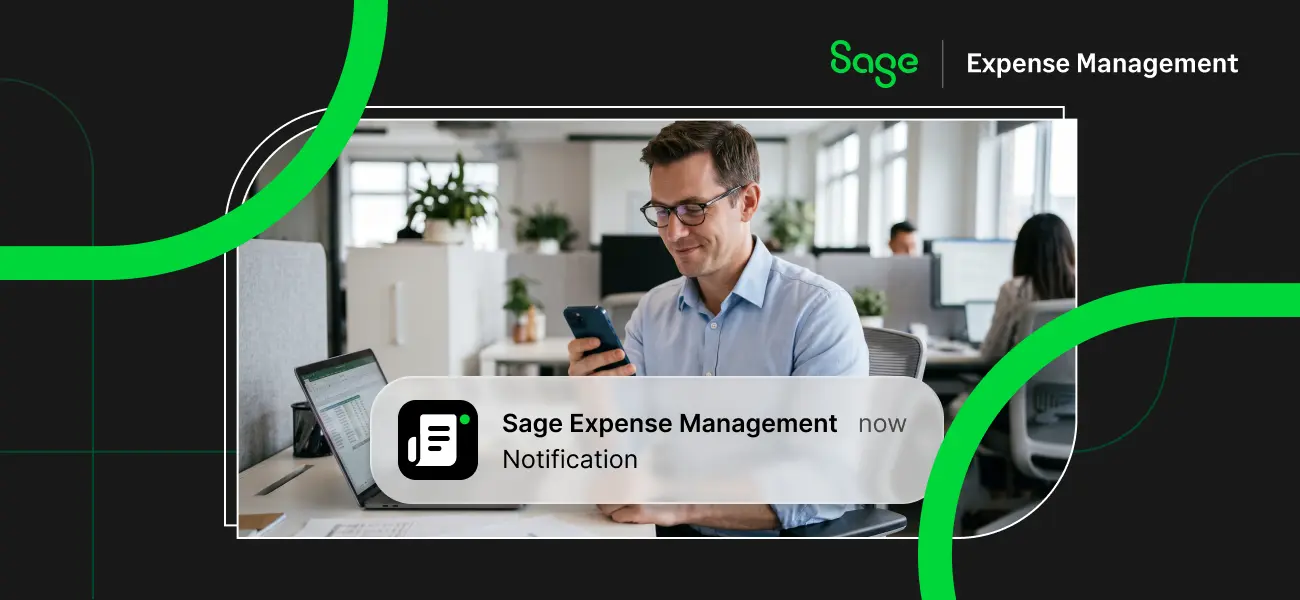
Managing business expenses shouldn't mean constantly checking emails, chasing receipts, or remembering which expense reports need your attention.
With mobile push notifications in Sage Expense Management, you can receive real-time corporate card transaction alerts, attach receipts, and stay updated on expense reports directly from your phone.
And now, we're making it even easier to stay on top of expenses with scheduled reminders for pending tasks, more control over notification preferences, and card transaction alerts across multiple organizations.
Here's how mobile push notifications help you manage expenses on the go and how to get started.
Capture receipts as soon as you spend
One of the easiest ways to avoid missing receipts is to capture them right after making a purchase.
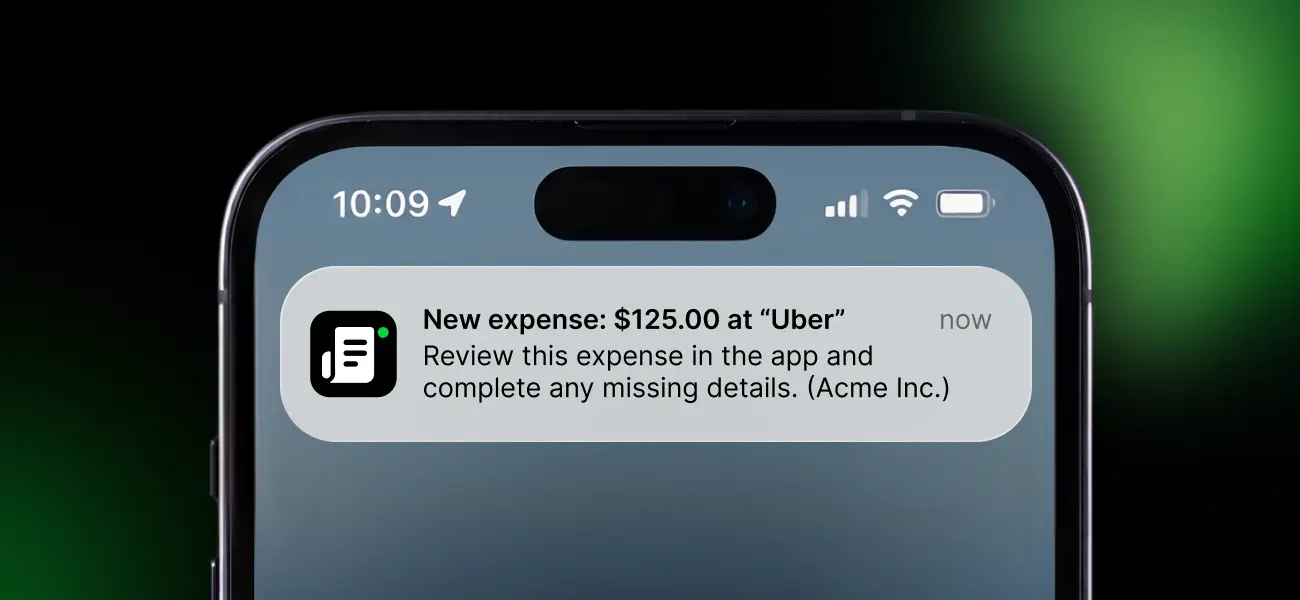
When you make a purchase using a Visa or Mastercard connected to Sage Expense Management through real-time feeds, an expense is automatically created, and you can receive a push notification on your phone with the transaction amount and merchant details.
Simply tap the notification to review your expense in the mobile app. You can then:
- Capture a photo of your receipt or upload an existing one.
- Review the expense details and fill in missing information.
- Select categories, projects, cost centers, or other required fields using dropdown menus.
- Save the completed expense with the receipt attached to the corresponding transaction.
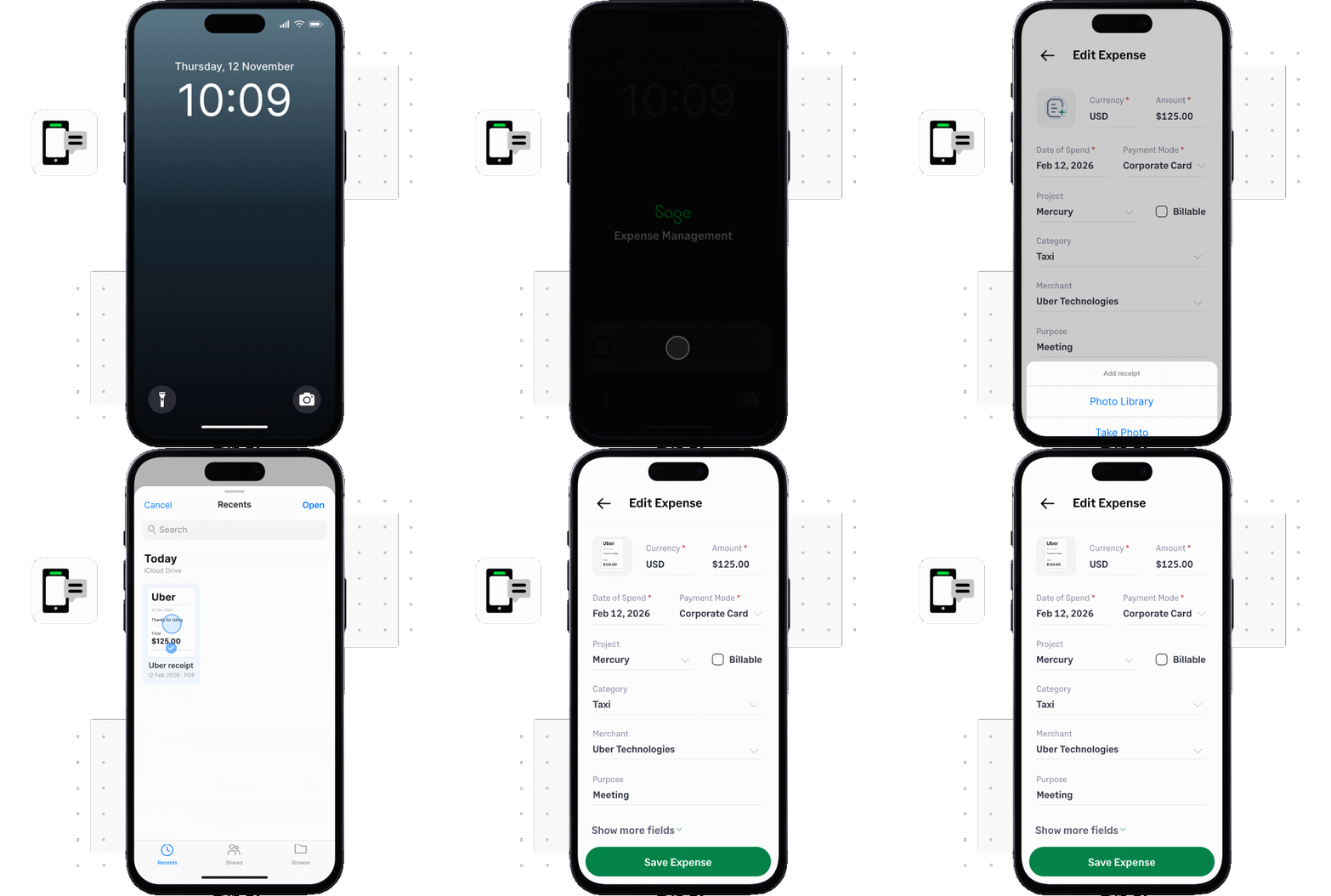
Instead of manually typing expense details through SMS, you can complete the required fields directly in the app.
This helps you capture receipts while they're still handy, complete expenses sooner, and avoid searching for missing information when it's time to submit your expense reports.
Get reminders for expenses, reports, and approvals
Keeping up with expenses can be difficult, especially when you're traveling, working on-site, or away from your computer.
Admins in Sage Expense Management can already schedule reminders to help employees complete pending expense tasks. Now, these reminders can also reach employees and approvers through mobile push notifications.
Depending on the reminders configured by your admin, you can receive notifications to:
- Complete pending expenses: Fill in missing details and attach receipts to incomplete expenses.
- Create expenses: Record expenses that haven't been created yet.
- Submit expense reports: Submit completed reports that are still awaiting submission.
- Review sent-back reports: Make corrections to reports returned for changes or clarification.
- Approve pending reports: Review and approve expense reports waiting for your attention.
- Connect your Visa or Mastercard: Get reminded to connect eligible corporate cards so transactions can flow into Sage Expense Management automatically.
You'll also continue receiving supported expense status updates, such as notifications when reports are automatically submitted, approved, or sent back, based on your notification settings.
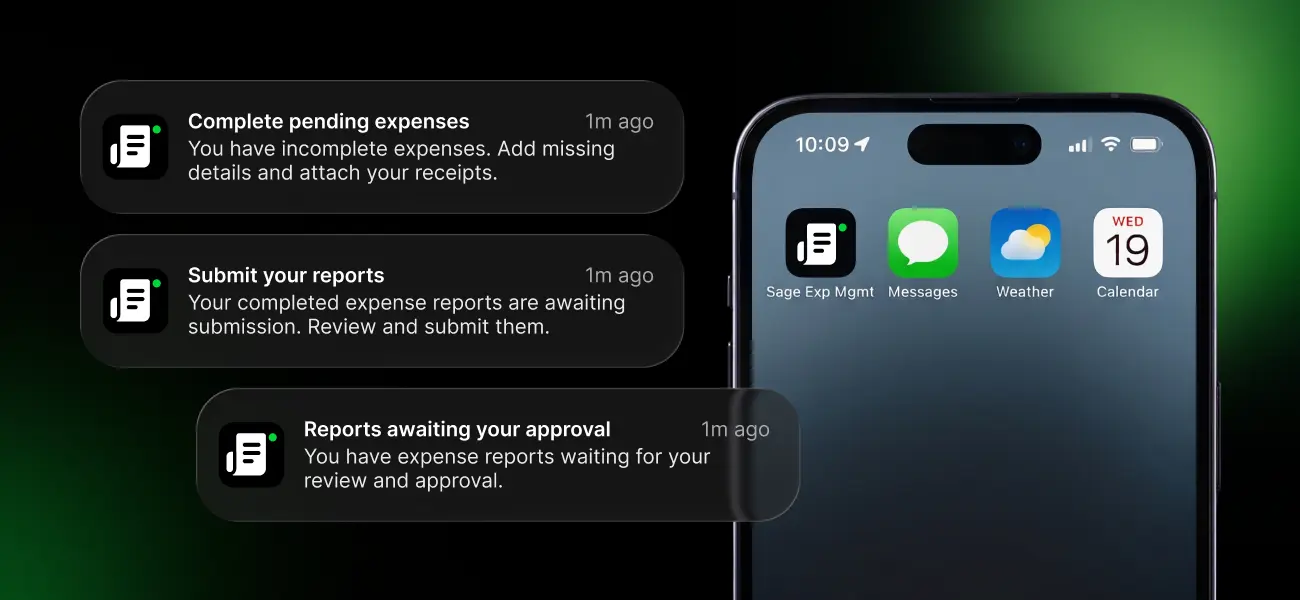
These reminders follow the schedule configured by your admin, so you can stay informed about tasks that need attention without relying only on email.
You can also tap a reminder to open the relevant section of the mobile app and take action.
For finance teams, this means fewer individual follow-ups for missing receipts, incomplete reports, and pending approvals, helping keep expense workflows moving.
Choose how you receive real-time card transaction alerts
Everyone has a preferred way of receiving updates. Some employees prefer SMS, while others find mobile push notifications more convenient.
Previously, receiving real-time Visa and Mastercard transaction alerts through mobile push notifications required you to enable SMS alerts as well.
Now, you can choose to receive these alerts through SMS, mobile push notifications, or both.
If you prefer using the mobile app, you can enable push alerts without having to opt in to SMS. And if you prefer receiving text messages, you can continue using SMS as before.
This gives you more flexibility to manage expenses using your preferred channel, while helping avoid duplicate notifications you don't need.
Get card transaction alerts across multiple organizations
If you manage expenses across multiple organizations in Sage Expense Management, there's another important update.
You can now receive eligible Visa and Mastercard real-time card transaction alerts from your non-primary organizations too.
For example, if you belong to two organizations and make a purchase using a corporate card connected to your non-primary organization, you can receive a mobile push notification for that transaction.
Each notification also includes the organization's name, helping you identify which organization the transaction belongs to.
This is particularly useful for businesses managing multiple entities, where employees may have corporate cards and expenses associated with different organizations.
With alerts available across eligible organizations, employees can keep track of card transactions and add receipts more consistently, without needing to rely on SMS for their non-primary organizations.
How to set up mobile push notifications in Sage Expense Management
Getting started is simple. Admins can manage which notifications are available to their teams, while employees can choose which enabled notifications they want to receive.
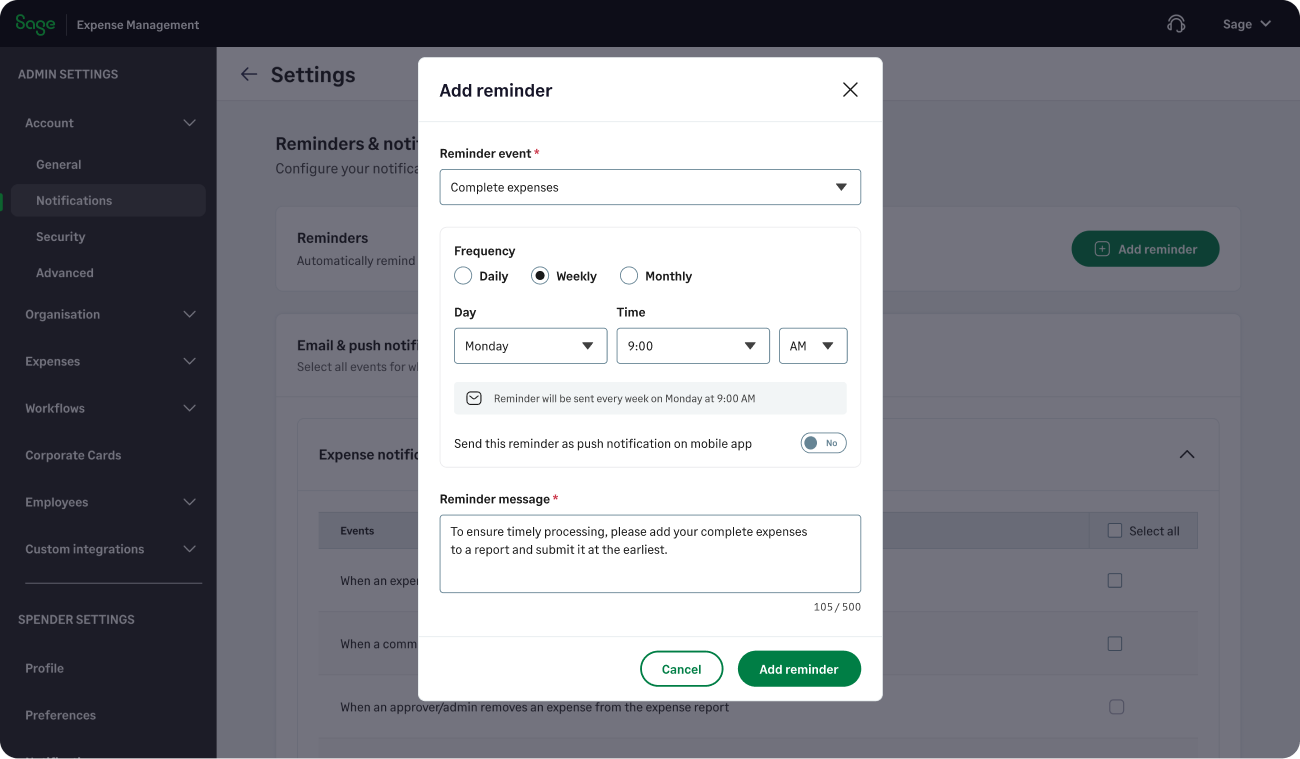
For admins: Configure expense reminders
If you've already configured expense reminders for your organization, there's no need to recreate them. Your existing reminder schedules will continue to work, with mobile push notifications available as an additional channel.
To create a new reminder:
- Log in to Sage Expense Management on the web.
- Go to Admin Settings > Account > Notifications.
- Under Reminders, click Add Reminder.
- Select the type of reminder you want to configure.
- Choose the reminder frequency, such as weekly, monthly, or custom, and set the schedule. Toggle on the option to send the reminder as a mobile push notification.
- Add your reminder message and save it.
Admins can decide which notifications are available to employees. For scheduled reminders, admins can also choose whether to send them as mobile push notifications.
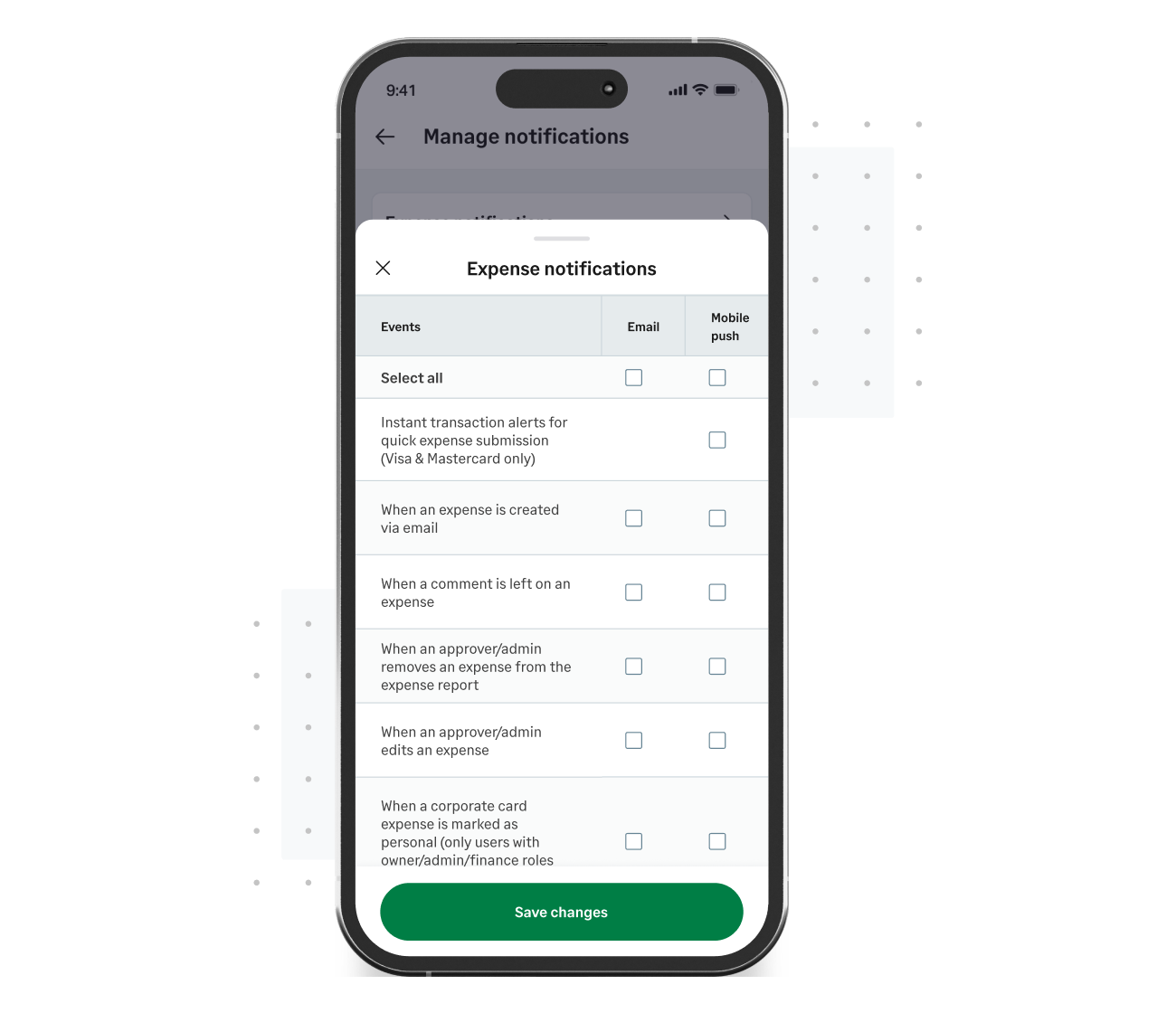
Employees can manage their individual notification preferences and choose whether to receive available notifications through email or mobile push notifications.
When an admin enables mobile push notifications for a reminder, eligible employees are opted in by default. Employees can change their individual push notification preferences whenever they prefer.
Learn more about setting up automatic reminders
For employees: Manage your push notification preferences
To receive mobile push notifications, make sure you have the Sage Expense Management mobile app installed and notification permissions enabled on your phone.
Step 1: Install the mobile app
Download Sage Expense Management from the App Store or Google Play Store and sign in using your account.
Step 2: Allow notifications
When prompted, allow Sage Expense Management to send notifications to your device.
Step 3: Review your notification preferences
In the mobile app:
- Open the menu next to Home.
- Go to Settings > Notifications > Manage Notifications.
- Review the available notification options under Expenses, Expense Reports, and other categories.
- Select the push notifications you want to receive and save your preferences.
You can also manage these settings from the web app under My Settings > Notifications.
New reminder notifications enabled by your admin are switched on by default for eligible employees, so you don't need to manually enable each reminder to start receiving them.
However, you can turn off individual push reminders whenever you prefer. Your organization's admin settings will continue to determine which reminders are available.
Learn more about managing your notification preferences
For cardholders: Choose SMS or push notifications
If you use a Visa or Mastercard connected to a supported real-time feed, you can choose how you receive transaction alerts.
- Open your notification preferences in Sage Expense Management.
- Find the real-time transaction alerts for Visa and Mastercard.
- Enable mobile push notifications, SMS, or both, depending on your preference.
You can receive push notifications without enabling SMS alerts.
If you're part of multiple organizations, you can manage notification preferences for each organization independently.
How mobile push notifications make expense management easier
Whether you're an employee submitting expenses, a manager reviewing reports, or an admin overseeing expense workflows, mobile push notifications help you stay informed and take action sooner.
For employees: Complete expenses while they're fresh
Receive transaction alerts when you spend, attach receipts immediately, and fill in missing expense details from your phone. Scheduled reminders also help you keep track of expenses and reports that still need attention, even when you're away from your desk.
For approvers: Keep approvals moving
Get reminders about expense reports waiting for your approval, review them from the mobile app, and help prevent delays caused by pending approvals.
For finance teams: Spend less time chasing expenses
Reach employees with scheduled reminders for incomplete expenses, missing submissions, and pending approvals. By helping employees complete tasks sooner, you can reduce manual follow-ups and keep expense records more complete for reconciliation and month-end close.
Make expense management easier, wherever you work
From getting notified when you make a corporate card purchase to attaching receipts, submitting reports, and reviewing approvals, mobile push notifications help you stay on top of expenses directly from your phone.
With scheduled reminders, flexible notification preferences, and support for multiple organizations, you can keep your expense workflows moving without constantly checking your inbox.
Ready to manage expenses on the go?
Download the Sage Expense Management mobile app, review your notification preferences, and start managing your expenses right from your phone.
{{mobile-push-notifications="/cta-banners"}}