



You can’t manage what you can’t track.
And when expenses are missing tags or assigned to the wrong fund, it’s nearly impossible to get an accurate view of your church’s finances.
Was that meal charged to Outreach or Youth Ministry?
Was this purchase for the Fall Retreat or the General Fund?
Why is $1,200 showing up under “Uncategorized”?
Without consistent, accurate coding, your reports fall apart. Budgets go off track. And audit season becomes a guessing game.
That’s why churches use Sage Expense Management to track expenses by ministry, program, fund, or event — with custom fields, dropdowns, and required tags that ensure every submission is complete and correctly coded.
Why Expense Coding Fails in Most Churches
Manual or inconsistent tagging is one of the biggest blockers to accurate reporting. Even well-meaning staff and volunteers skip fields, use outdated labels, or guess fund names.
Here’s what typically goes wrong:
- Missing tags – Expense reports are submitted without ministry or program selected
- Wrong categories – “Event Supplies” ends up filed under “Admin” or “General Fund”
- Too many free-form entries – Volunteers type what they remember (“Church Picnic”), leading to inconsistent data
- No rules – Nothing enforces required fields, so expenses go through half-complete
- Fixes happen too late – Errors are discovered only during reconciliation or audit prep
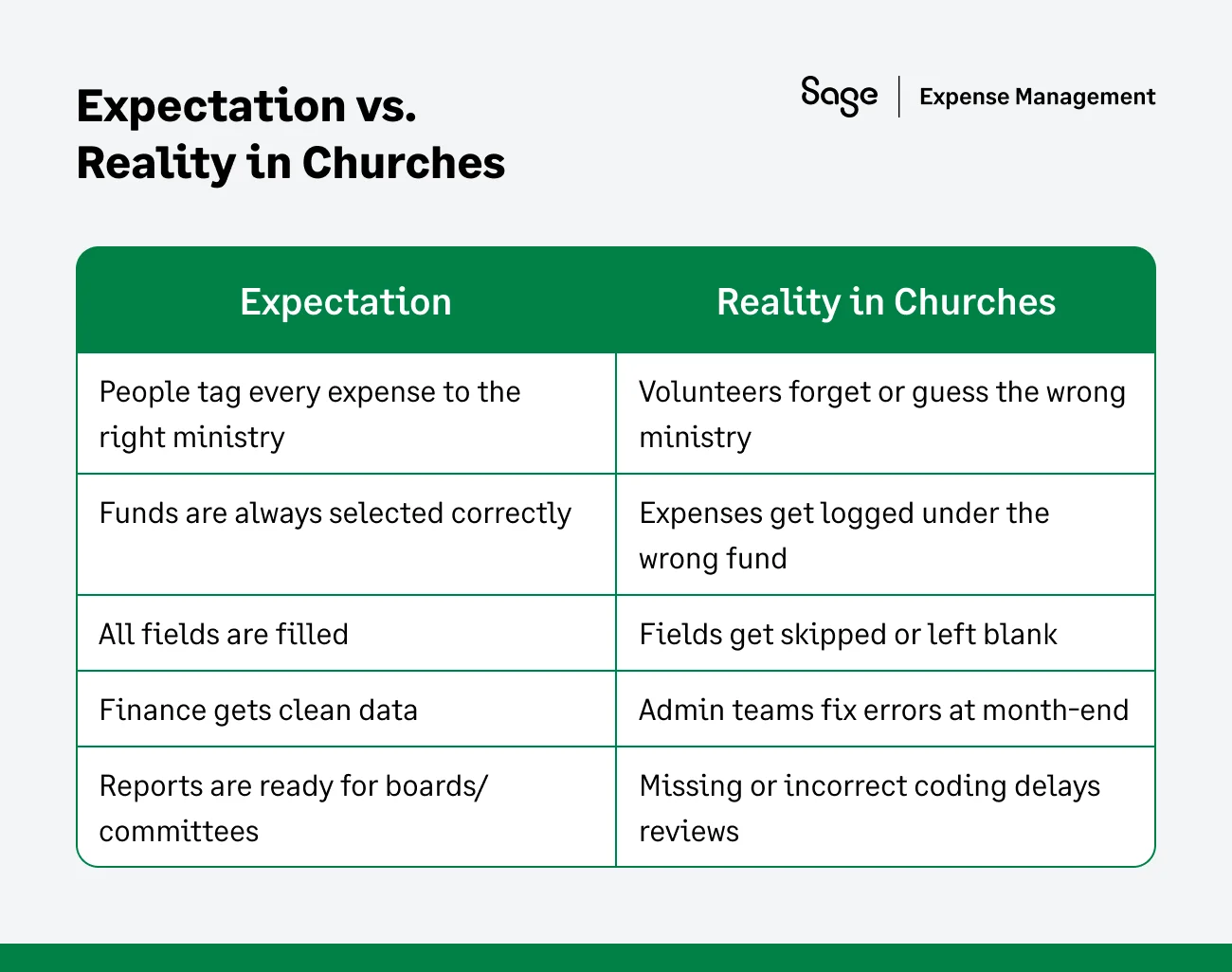
If your finance team spends hours cleaning reports or manually adjusting fund allocations, you’re not alone.
How Sage Expense Management Fixes Expense Coding for Churches
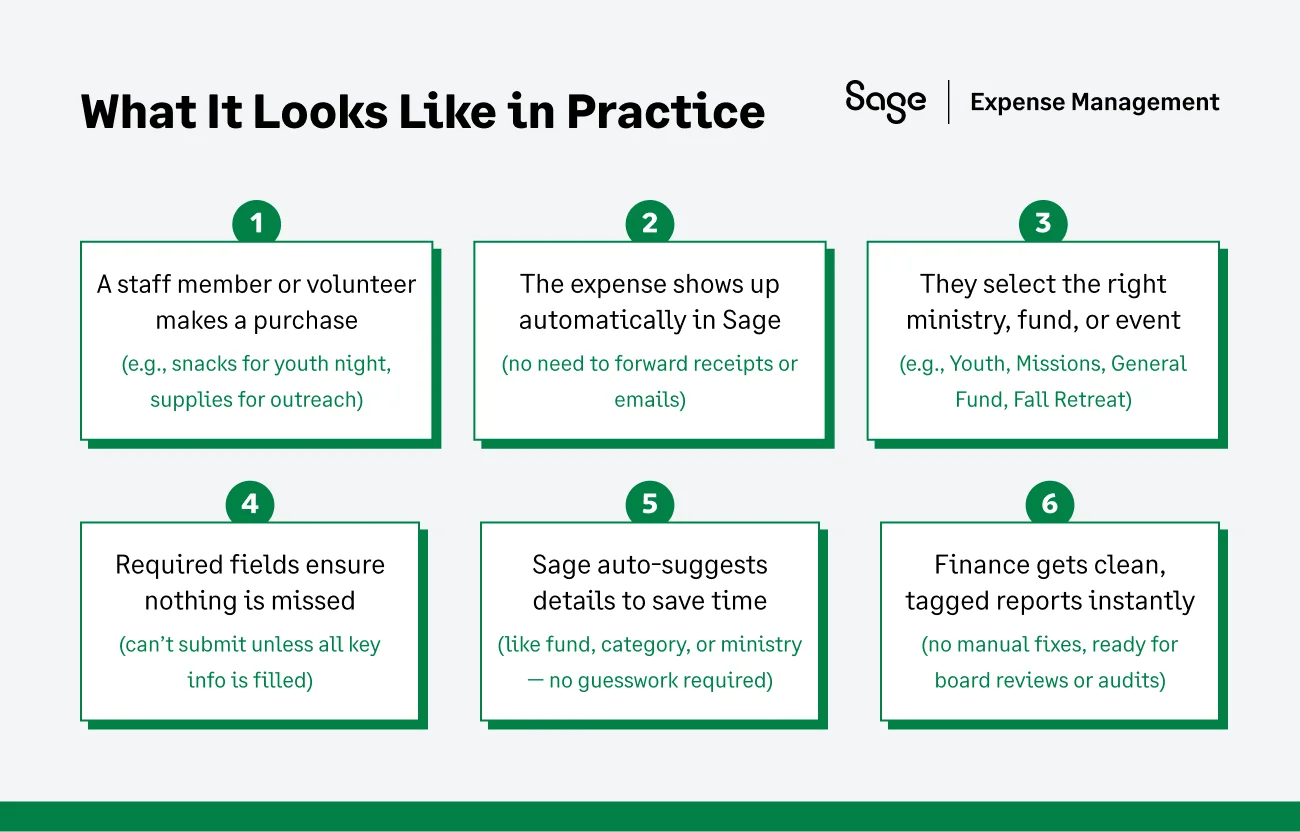
Tracking ministry spending shouldn’t rely on guesswork. Sage Expense Management ensures every expense is tagged correctly to the right ministry, fund, event, or program from the moment it’s submitted. No follow-ups. No recoding later.
Here’s how it works:
1. Custom Fields Tailored to Church Needs
Set up fields that reflect how your church operates, such as:
- Ministry
- Fund
- Program or Event
- Campus or Location
- Donor-restricted categories
- Project (e.g., Missions Week, VBS)
Each field appears exactly where it’s needed, keeping things clear and consistent for staff and volunteers.
2. Mandatory Ministry Tagging (No Missing Info)
Make fields required so submissions can’t go through unless they’re complete. Volunteers and staff are prompted to fill in key details like:
- Ministry
- Fund
- Program
- Any other field you define
This ensures nothing slips through the cracks and reduces last-minute corrections by finance.
3. Restricted Dropdowns That Reduce Mistakes
Sage replaces open-text fields, where people might type anything, with structured dropdown menus. This ensures staff and volunteers choose from approved lists instead of random guesses.
So instead of typing things like:
- “Youth minsitry”
- “Outreach Fund”
- “fallretreat2024”
…they simply select:
- Ministry: Youth, Worship, Outreach, Missions
- Fund: General Fund, Benevolence, Building Fund
- Event: Fall Retreat, Easter Outreach, Baptism Sunday
This eliminates typos, variations, and inconsistent labeling, giving finance teams clean and standardized data.
4. Role-Based Visibility to Avoid Confusion
Each user sees only what’s relevant to them. For instance:
- Worship team sees Worship-specific categories
- Missions staff sees Missions-related funds
- Volunteers get simplified options
This keeps coding clean and reduces accidental misclassifications.
5. Dependent Fields That Guide the Submitter
You can define field logic like:
- If Ministry = Youth, show only Youth-specific events
- If Fund = Missions, restrict options to Missions-only programs
- If Program = Outreach, auto-fill the correct fund
These dynamic fields guide users step by step, ensuring each submission aligns with your church’s structure and compliance needs.
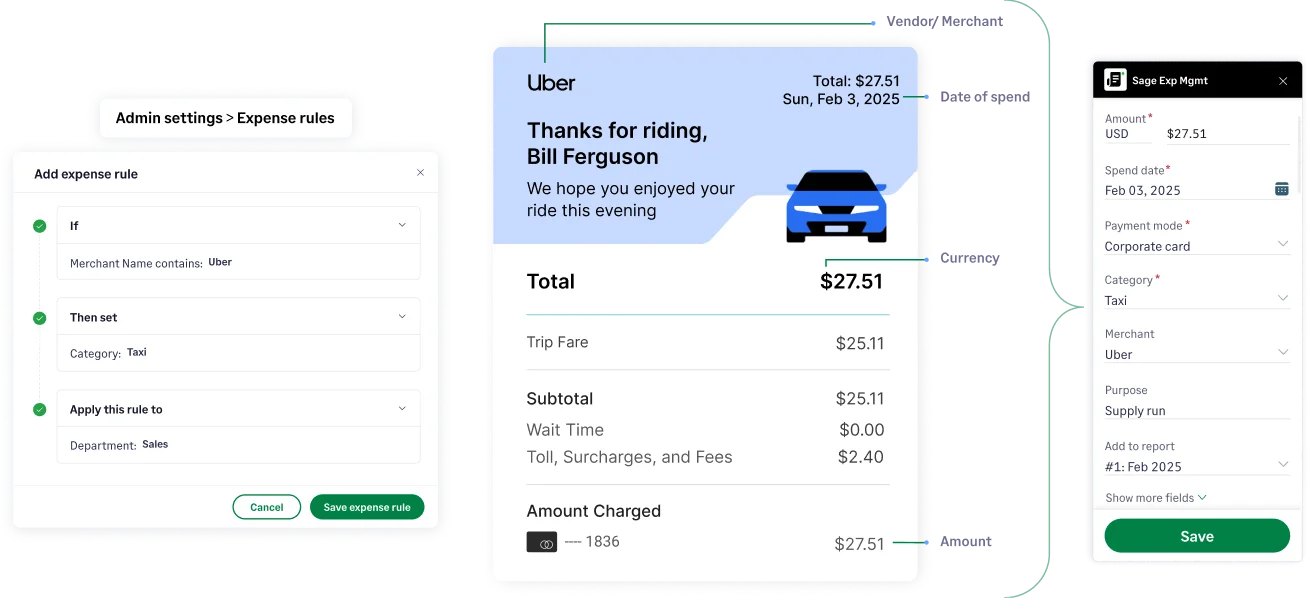
6. Auto-Coding to Speed Up Submissions
Sage extracts the merchant name, category, amount, and date. This helps spenders, such as pastors or admins, complete entries faster with fewer manual steps.
7. Clean Sync With Your Church Accounting Tools
Every tag — ministry, event, or fund — stays intact when exported to:
No need to reformat or re-categorize during reconciliation.
Why Church Finance Teams Love This
- Connects with your existing church credit cards, no need to switch banks
- Handles reimbursable, card, mileage, and per diem expenses in one platform
- Automatically matches receipts to the correct card transactions
- Keeps every expense tagged, approved, and audit-ready
- Gives your finance team real time visibility on all the church expenses
- Syncs seamlessly with all the major accounting softwares
Whether you track spend by ministry, program, or fund, Sage gives you the structure to do it well — without extra admin overhead.
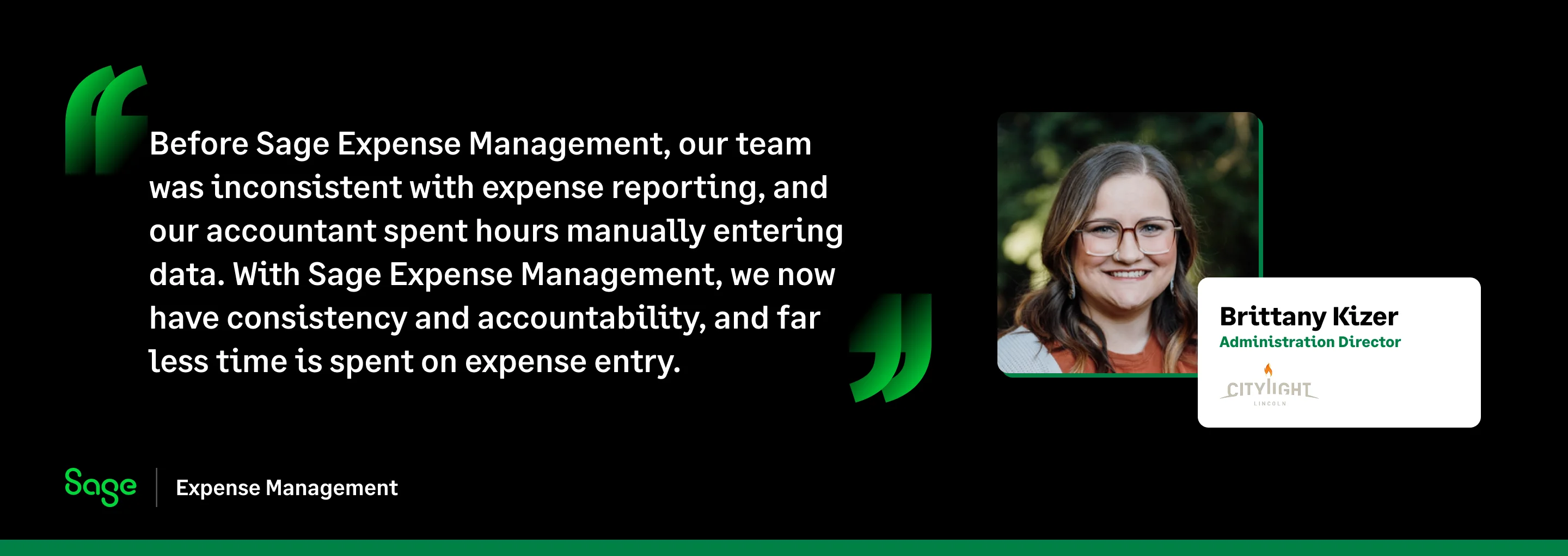
Bring Accuracy and Clarity to Your Church’s Expenses
Your ministries work hard. Your volunteers serve faithfully.
Your finance team shouldn’t have to sort through miscoded expenses every month.
With Sage Expense Management, every expense is:
- Categorized correctly
- Tagged to the right ministry, fund, and program
- Synced cleanly with your accounting software
- Ready for review and audit
No confusion. No cleanup. Just clean, accurate financials.
{{church-coding="/cta-banners"}}