



At Sage Expense Management, we shipped a lot last quarter. Some of it big and loud, some of it quietly tucked into a settings page you might not have opened yet. This is our chance to walk you back through the changes that make the biggest difference to your day, in case any of them slipped past while you were busy actually getting work done.
Reconciliation, without the back-and-forth
Reconciling card statements against what's in your account is one of those jobs that can quietly eat a whole morning. Matching things line by line, chasing down duplicates, and never feeling quite sure everything adds up. Statement Upload has carried this workflow faithfully for years. This quarter, we asked what it would take to get you to the finish line in a fraction of the time, with complete confidence in what's already added versus what's still missing.
The new Reconciliation module takes that same goal and builds a much smoother path to it. Upload your statement and SEM does the first pass for you, sorting everything into what's matched, what's missing, and what needs your attention. From there you can fix the gaps and close the loop right where you are. No manual back-and-forth, no side spreadsheets, no guesswork.
If your team relies on RTF (Real-Time-Feed) for their transactions, this is a must-tryon. It's in beta now. Reach out to [email protected] if you'd like to get your hands on this.
Review at the speed of thought
Reviewing expenses should move as fast as you can make the decision. Two of this quarter's releases close the gap between spotting what needs fixing and actually fixing it, so coding and correcting expenses keeps pace with you.
Edit expenses right from the list
The expense form is the right place for a considered edit, with every detail in front of you. But when all you need is a nudge to a category or a cost center, you shouldn't have to go that far. Now admins and approvers can edit expenses directly from the list view, no opening required. Click a field in the row (they highlight as you hover), update it, and save right there. It works on the Business Expenses page and inside reports for admins, and on the Team Reports page for approvers, across the all editable expense states.
{{2026-q3-product-updates="/cta-banners"}}
%2B(1).gif)
Fix a whole batch in one go
Some edits are never one-offs; a whole set of expenses needs the same category, the same cost center, the same correction. Instead of repeating yourself expense by expense, admins and approvers can now select up to 50 expenses at once and apply the change to all of them in a single action.
It covers the fields you reach for most: category or GL code, cost center, project, custom fields, merchant, purpose and billable checkbox. When you hit save, you get a clear recap of what happened: how many expenses were updated, how many are complete, and anything that needs a second look.
More control in admins' hands
Flexibility is great, but so is knowing exactly what's happening with your data and who can touch it. Two updates give admins more of that quiet confidence.
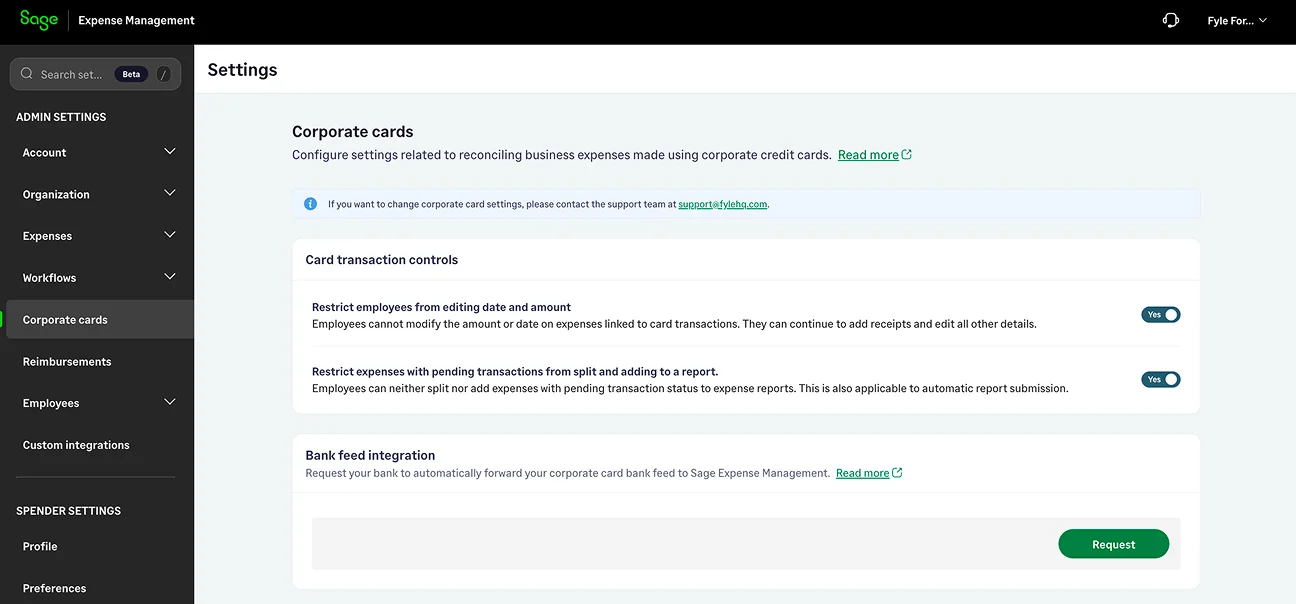
Tighter control over card expense edits. Edits to card-linked expenses could quietly create reconciliation mismatches down the line. Admins can now switch on an optional setting that locks the amount and date on card-linked expenses, while manual expenses stay editable. You'll also see clear indicators when either field has been changed from the original card feed.
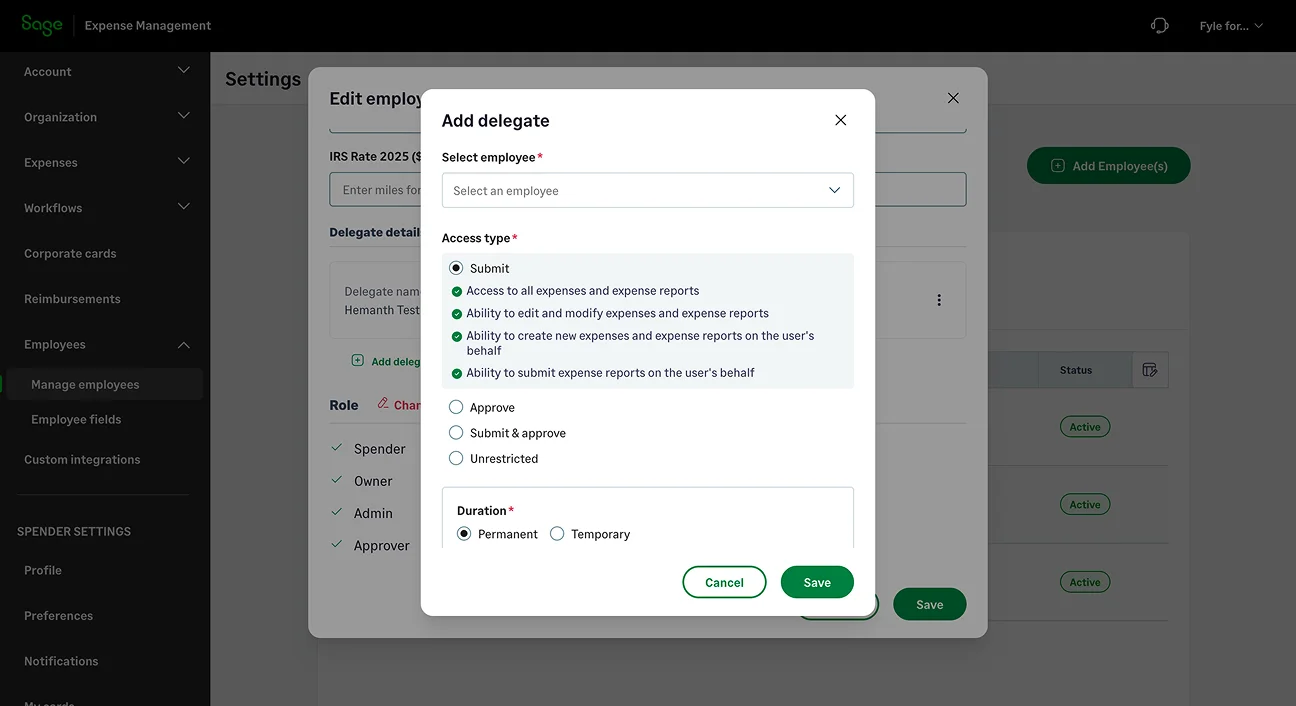
Decide exactly what a delegate can do. Handing someone access to your account used to be all-or-nothing. Now you can choose the level: submit only, approve only, both, or full access, and it applies across web and mobile. Delegates also can't approve their own reports, even with broader access. More flexibility for you, fewer compliance worries for everyone.
Your card data, one question away
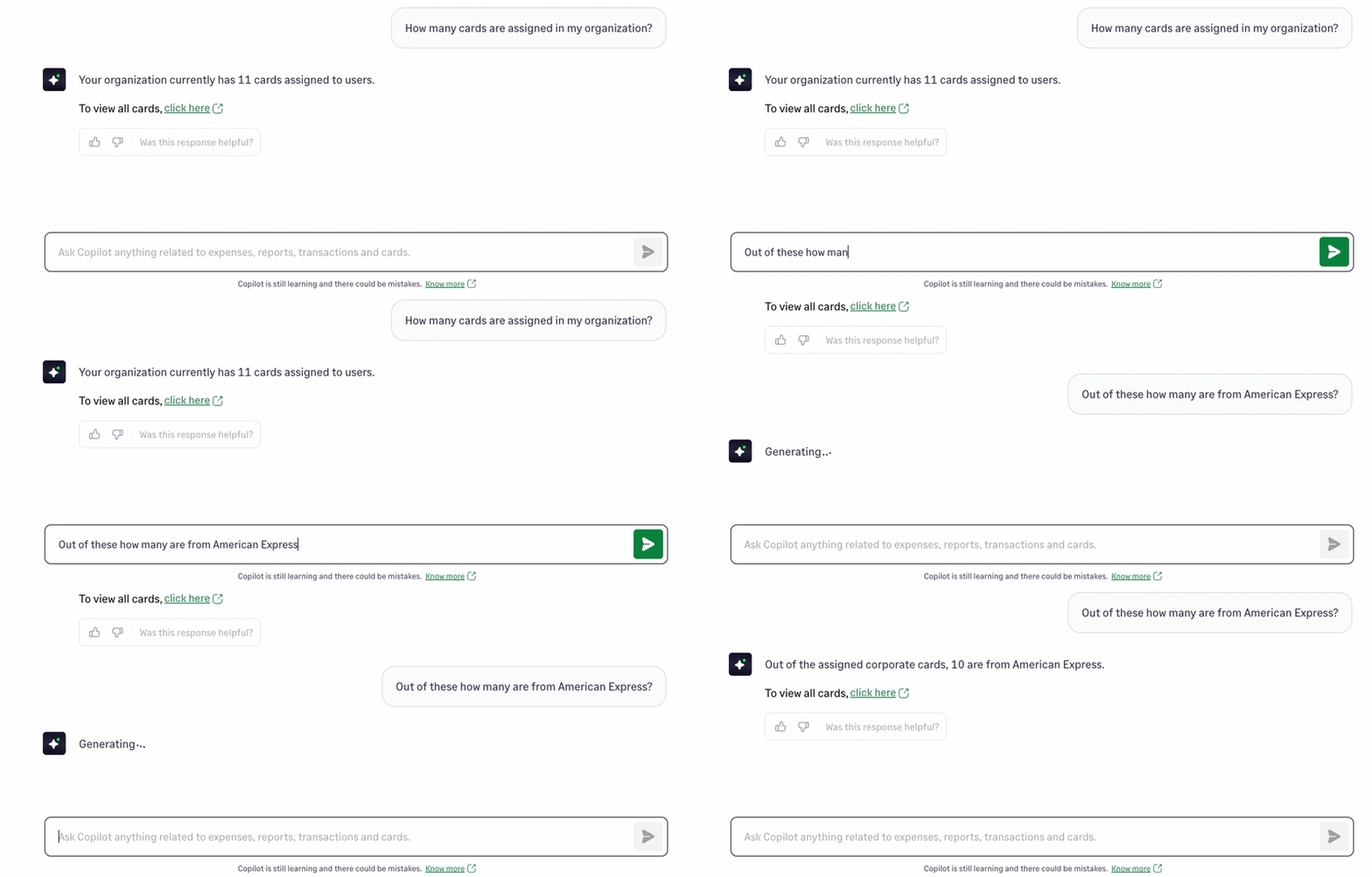
Copilot has gotten a lot more fluent in cards! Good news for admins, who tend to field a steady stream of card questions. Now you can put those questions to Copilot in plain language and get answers straight from your Corporate Cards data, no digging required.
Ask about the cards themselves, or ask about the transactions on them. A few to get you started:
- "Show all unassigned cards in my company."
- "Show transactions from merchant Krispy Kreme in the last 2 months."
- "How many transactions are marked personal each month?"
{{2026-q3-product-updates-2="/cta-banners"}}
Peace of mind, built in
A single compromised password shouldn't be enough to get into an account, so now it isn't. We've added email-based two-factor authentication to login: enter your email and password as usual, then a six-digit code arrives in your inbox to confirm it's really you. Zero setup, every user covered, one more solid layer between your data and anyone who shouldn't have it. (If you sign in with SSO, nothing changes for you.)
Find any setting in a flash
We saved a quiet favourite for last, one you'll reach for far more than you'd expect. Admin Settings has grown into a big place over the years: pages within pages, tucked-away toggles, configuration for just about everything. Powerful, sure, but finding the one setting you came for could mean scrolling the sidebar and second-guessing where it lived.
Not anymore. There's now a search bar right at the top of Admin Settings, or just press / to jump straight in from anywhere in Settings. Start typing, and it surfaces exactly what you need, neatly grouped into quick actions, pages, sections, and settings, so you land in the right place in a keystroke or two.

That's the quarter. Some of these will change your day-to-day right away; others are waiting quietly for the moment you need them. Either way, we'd love to know how they land for you. Your feedback genuinely shapes what we build next.
Here's to a lighter, faster quarter ahead.
As always, your feedback helps us build better. Write to us anytime at [email protected].